
For Integrating E-commerce Websites with Existing Flutterwave Integrations.
How to use
- Include the inline JavaScript plugin script in your HTML markup:
<script src="https://dev.nevance.com/js/inline/v1/inline-flw1.js"></script>

<button onclick="loadFlutterwave()">Pay Now</button>
- Set up your payment payload and configure your event handlers
function loadFlutterwave() {

    QuickSetup({
        nPublicKey: 'your nevance public key',	//your Nevance Public Key
        //public_key: "FLWPUBK_TEST-5214cf3c97b784837bae792bb1c7-X",
        tx_ref: '' + Math.floor((Math.random() * 1000000000) + 1), // generates a pseudo-unique reference. Please replace with your custom reference if any.
        amount: 1800,
        currency: "NGN",
        country: "NG",
        payment_options: "ussd,card,account,banktransfer,paga,paypal,qr",
        redirect_url: "https://www.example.com", // specified redirect URL

        meta: {
            consumer_id: 23,
            consumer_mac: "92a3-912ba-1192a",
        },

        customer: {
            email: "[email protected]",
            phone_number: "08012345678",
            name: "Jane Doe",
        },

        callback: function (response) {

            alert(JSON.stringify(response));

            //window.location.replace("https://www.example.com");
        },
        onclose: function () {
            //alert("aborted")
        },
        customizations: {
            title: "My Store",
            description: "Payment for items in cart",
            logo: "link to logo image",
        },
    });
}
{
    "status": true,
    "message": "success",
    "data": {
        "status": "Success",
        "id": "E1C3A8255C47",
        "reference": "865396985",
        "amount": 1800,
        "chargedAmount": 1800,
        "fee": 0,
        "description": "test payment",
        "currency": "NGN",
        "source": "Card",
        "defaultChannel": "Flutterwave",
        "usedChannel": "Paystack",
        "switched": true,
        "ipAddress": "102.89.255.255",
        "customerName": "Jane Doe",
        "customerEmail": "[email protected]",
        "customerPhone": "08012345678",
        "feeBearer": "Customer",
        "productId": null,
        "createdAt": "2021-08-10T18:48:23.9383244",
        "completedAt": "2021-08-10T18:49:21.2804261Z",
        "refundedAt": null,
        "smsReminder": false,
        "emailReminder": true,
        "frequency": "Minutely",
        "interval": 1
    }
}
Prerequisite
Login to your settings tab to update your external processor settings. Please note that only your public key is required.
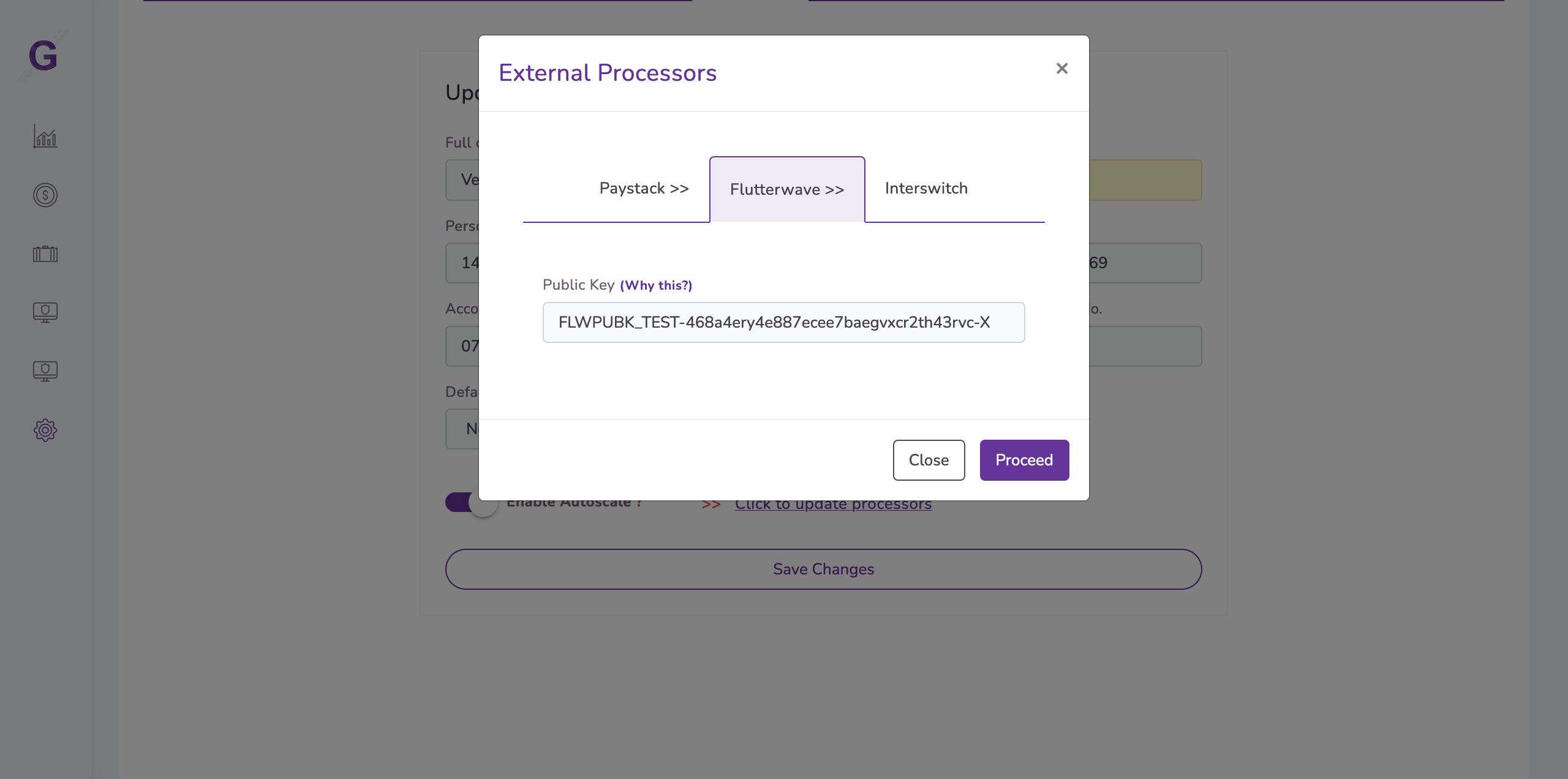
Login > Settings Tab > Update Processors
Having implemented and completed the above steps, you are now ready to receive payments on your website.
Downtime Detection vs. Payment Routing
In the events where default processor is experiencing downtime, an available payment processor is used to accept your payments without your customers experiencing the downtime.